Want to turn your creative ideas into 3D reality? Our Autodesk Fusion 360 tutorial will help you create impressive 3D models in just 30 minutes, even if you’re starting from scratch.
Fusion 360 is the world’s most powerful free CAD software. This makes it an excellent choice for beginners who want to explore 3D design. You’ll find our Fusion 360 tutorial different from others. We’ve created this beginner’s guide with a project-based approach that helps you learn the software without feeling overwhelmed.
This tutorial covers everything you need. You’ll learn to navigate the user-friendly interface and create simple sketches before building complete 3D models. The projects include designing moving components like robotic arms, practical items like door hinges, and fun objects like 20-sided dice.
No previous experience? No problem. We’ll walk you through each fundamental step. You’ll build solid modeling skills before we move to advanced concepts. This piece will give you the confidence to create and 3D print your designs. You’ll also learn to produce realistic images that match professional engineering standards.
Ready to begin your experience with Autodesk Fusion 360? Let’s get started!
Learn the Core Tools in Fusion 360
Learning Fusion 360 starts with becoming skilled at its foundational tools. Fusion 360 stands out from other CAD programs by organizing its tools logically, which makes learning easier.
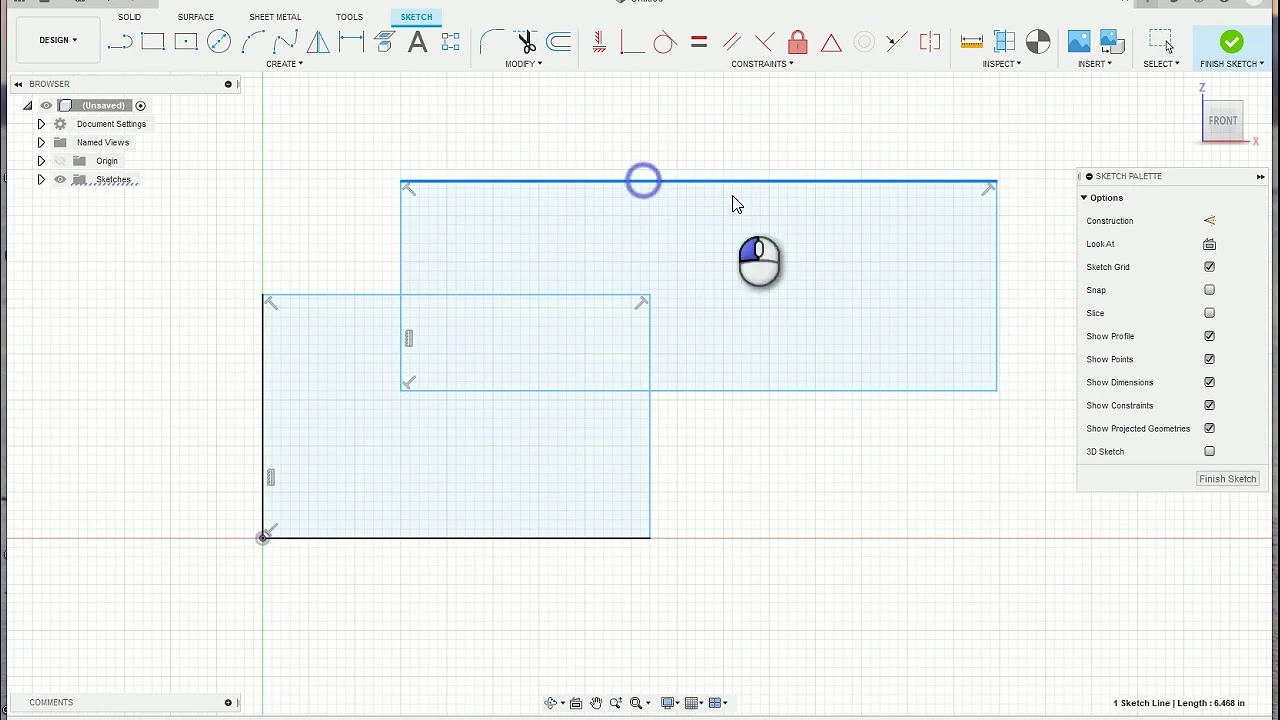
Sketching is the foundation of all designs in Fusion 360. Your first model will require simple sketching tools like lines, circles, rectangles, and arcs to build 2D profiles. These profiles are the foundations of all your 3D models. Fully closed sketches produce the best results for creating solid objects.
Your designs come to life with these transformation tools after sketching:
- Extrude: Pushes or pulls sketches into 3D shapes
- Revolve: Spins profiles around an axis—perfect for cylindrical objects
- Sweep: Creates complex shapes by moving profiles along paths
- Pattern: Duplicates features in circular or linear arrangements
Design refinement happens through modification tools. The Filet tool rounds sharp edges while the Chamfer creates beveled edges. The Hole tool adds precise openings to your models.
A natural rhythm develops in the workflow: sketch with constraints → extrude → create new sketches on extruded faces → repeat. These core tools will help you progress from simple shapes to complex designs in this fusion 360 tutorial.
Understand the Design Workflow
The core tools help you become skilled at the design workflow in Fusion 360 and raise your modeling capabilities. Success depends on understanding the relationship between bodies and components—two fundamental concepts that determine how your designs function.
Bodies are continuous 3D shapes that come from extruding 2D sketches into the third dimension. They share a coordinate system and origin, which makes them perfect for static objects without moving parts.
Components, on the other hand, work as containers with their own unique origin, timeline, and coordinate system. They can hold bodies, sketches, construction geometry, and even other components. You should always use components instead of bodies for assemblies because they support motion and appear in bills of materials.
To create a functional model:
- Start with a clear design intent
- Model individual components completely
- Apply joints to define mechanical relationships between parts
Joints play a significant role in assemblies because they specify movement between parts and define relationships exclusively between components. You can create rotational, slider, or rigid connections through joints.
The timeline shows your design history and lets you review, reorder, and modify previous steps. This parametric approach helps you quickly resize, add features, and re-version models with live updates.
Your Fusion 360 tutorial experience works better when you organize complex designs through components, especially those that need motion and assembly.
Explore Advanced Features for Beginners
After you learn the simple things, Fusion 360 packs several powerful advanced features that beginners can easily pick up. These tools take you beyond simple modeling and into professional-level design work.
Technical documentation helps you create precise 2D drawings from your 3D models. You can output technical drawings in formats of all types to share your designs with others or prepare them for manufacturing.
The simulation workspace might look scary at first, but it’s a great way to get testing capabilities. Simulation lets you confirm your designs before manufacturing. This saves time and resources you might waste on products that don’t meet requirements. The simple static stress simulation shows how your design performs under different conditions.
The rendering feature turns your models into photorealistic images. J Mays said it best: “consumers decide if they like a product in less than three seconds”. Good renderings show your design’s intent and create emotional connections through compelling visuals.
The sort of thing i love is generative design that mimics nature’s evolutionary approach. This feature explores multiple design possibilities based on your specifications for materials, manufacturing methods, and constraints. The system creates optimized solutions you might never think about otherwise.
These advanced features complete this fusion 360 tutorial and turn you from beginner into a confident designer who creates professional-quality work.
Conclusion
Learning Autodesk Fusion 360 doesn’t require years of practice or specialized training. This tutorial shows how this powerful free CAD software can revolutionize your creative ideas into impressive 3D designs through a straightforward, project-based approach.
The core tools are the foundations of all Fusion 360 designs. You’ve learned to sketch with lines, circles, and rectangles. These 2D profiles come to life in three dimensions using transformation tools like extrude, revolve, sweep, and pattern. The design workflow highlights a significant difference between bodies and components, which becomes essential when creating assemblies with moving parts.
On top of that, it unlocks advanced features that raise your designs to professional standards. Technical documentation, simulation capabilities, photorealistic rendering, and generative design work together. These features help you create and verify sophisticated models without overwhelming complexity.
Your experience from complete novice to confident designer has begun. The skills from this tutorial enable you to create everything from robotic arms to door hinges and 20-sided dice easily. You now have the fundamental knowledge to explore Fusion 360 further and develop your unique design style.
Without doubt, practice makes perfect. Each new project strengthens your abilities and deepens your understanding of this versatile software. Grab your mouse, fire up Fusion 360, and start turning those creative ideas into tangible 3D reality—your first masterpiece awaits!